Replace Style Path — Rebind and Experiment with Color Schemes Seamlessly

Effortless variable rebinding and theme experimentation with Replace Style Path

Replace Style Path — Rebind and Experiment with Color Schemes Seamlessly

Before You Begin

Before using Replace Style Path, make sure you’re familiar with the Token Commander and APCA Matrix tools.
This feature is most effective when working with variable sets that are already structured and properly named.


Problem Context (Pain Point)

When experimenting with multiple color schemes or transferring variable sets between Figma files, styles can lose their bindings.
This often happens when variable paths or collection names differ — even slightly — forcing designers to reconnect everything manually.

Imagine having dozens of button, input, and icon styles — each linked to separate variables. Changing color schemes or moving them to another document would normally require tedious manual rebinding.


How Inked Colibri Solves It

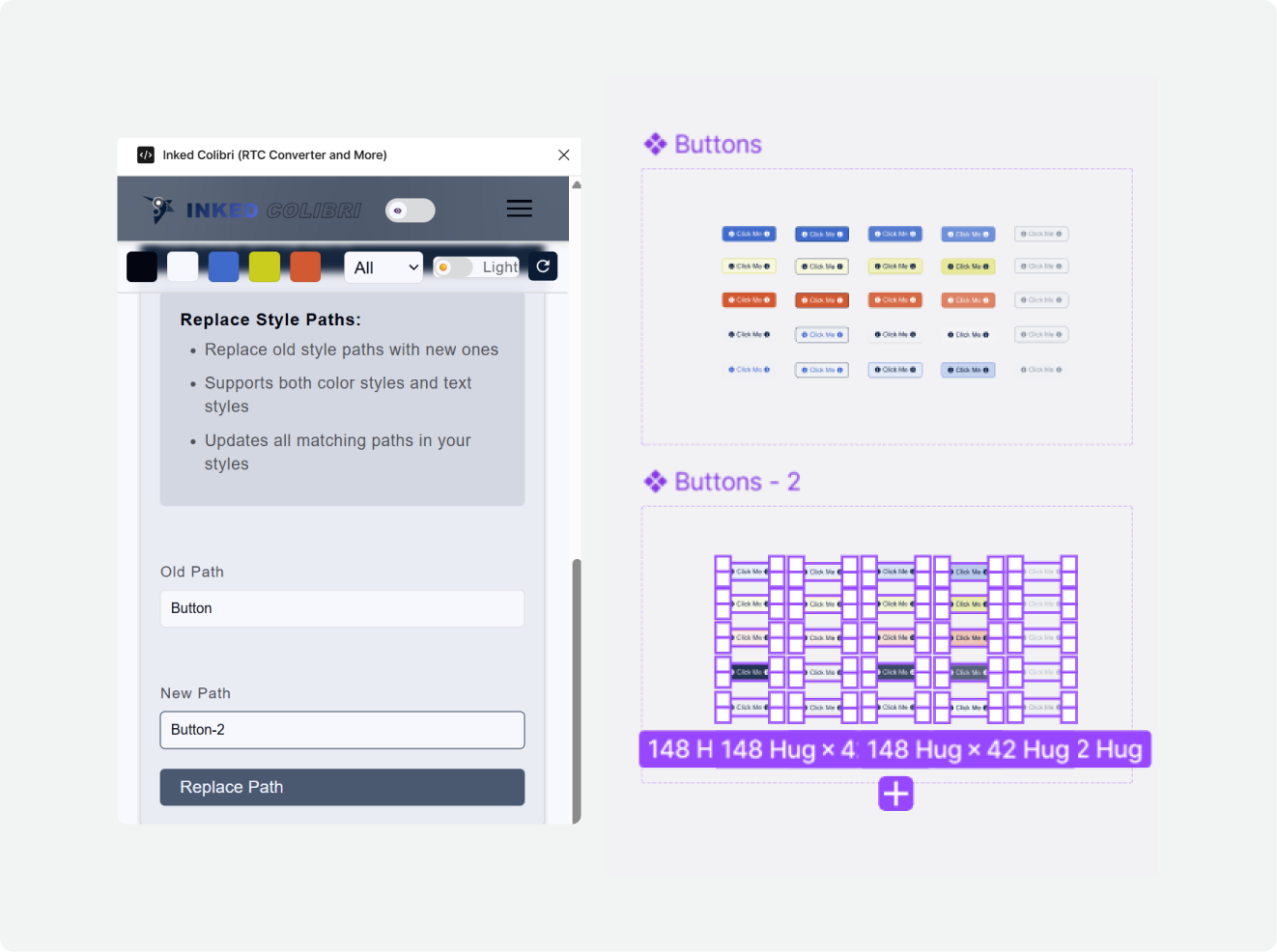
Replace Style Path allows you to update or rebind style paths in bulk, instantly reconnecting your styles and variables after duplicating or importing color systems.

It’s especially useful when:

  • Testing alternative color themes (e.g., buttonbutton-2)
  • Copying variable sets from one document to another
  • Restoring links after regenerating styles with Token Commander

How It Works

  1. Open the Replace Style Path tool inside Inked Colibri.
  2. Select all elements within your variable set (Ctrl + Select in Figma).
  3. Enter the original and target path — for example:
    button → button-2
  4. Click Replace — all style references update instantly.

Pro Tip

Keep your path structures identical (e.g., button/state/plate/button-2/state/plate/) to ensure bindings remain consistent across themes.


Use Case 1 — Duplicating Variable Sets for Color Experiments

When testing new color themes, the Replace Style Path tool helps you switch schemes without breaking your current setup.

  1. Generate an APCA Matrix (text version) to analyze your current colors.
  2. Export your color styles as JSON using Token Commander.
  3. Share both the APCA text and JSON with an AI to generate an accessible alternative palette.
  4. Duplicate your variable set in Figma.
  5. Execute the AI-generated JSON with Token Commander to create new styles (e.g., button-2/state/plate/).
  6. Use Replace Style Path to bulk-swap button with button-2 — all bindings update instantly.

Use Case 2 — Copying Variable Sets Between Figma Documents

When you move variable sets to another Figma document:

  1. Make sure the target document contains the necessary style groups (color or text).
    If not, export them from the source file using Token Commander and execute the JSON in the new file.
  2. If any styles rely on variable values, execute those variable sets first.
  3. Use Replace Style Path to rebind the new document’s styles — for example, replace button with button (same name, different file).
  4. Use Ctrl + Select to include all sub-elements before executing the rebinding.

Result / Takeaway

Replace Style Path removes the friction from managing complex style structures.
It lets designers duplicate, rebind, and experiment with different color themes — all while keeping their variables perfectly structured.

Whether you’re maintaining a single product theme or designing multi-brand systems, Replace Style Path keeps your workflow clean, consistent, and fast.

Written by Narek Ch