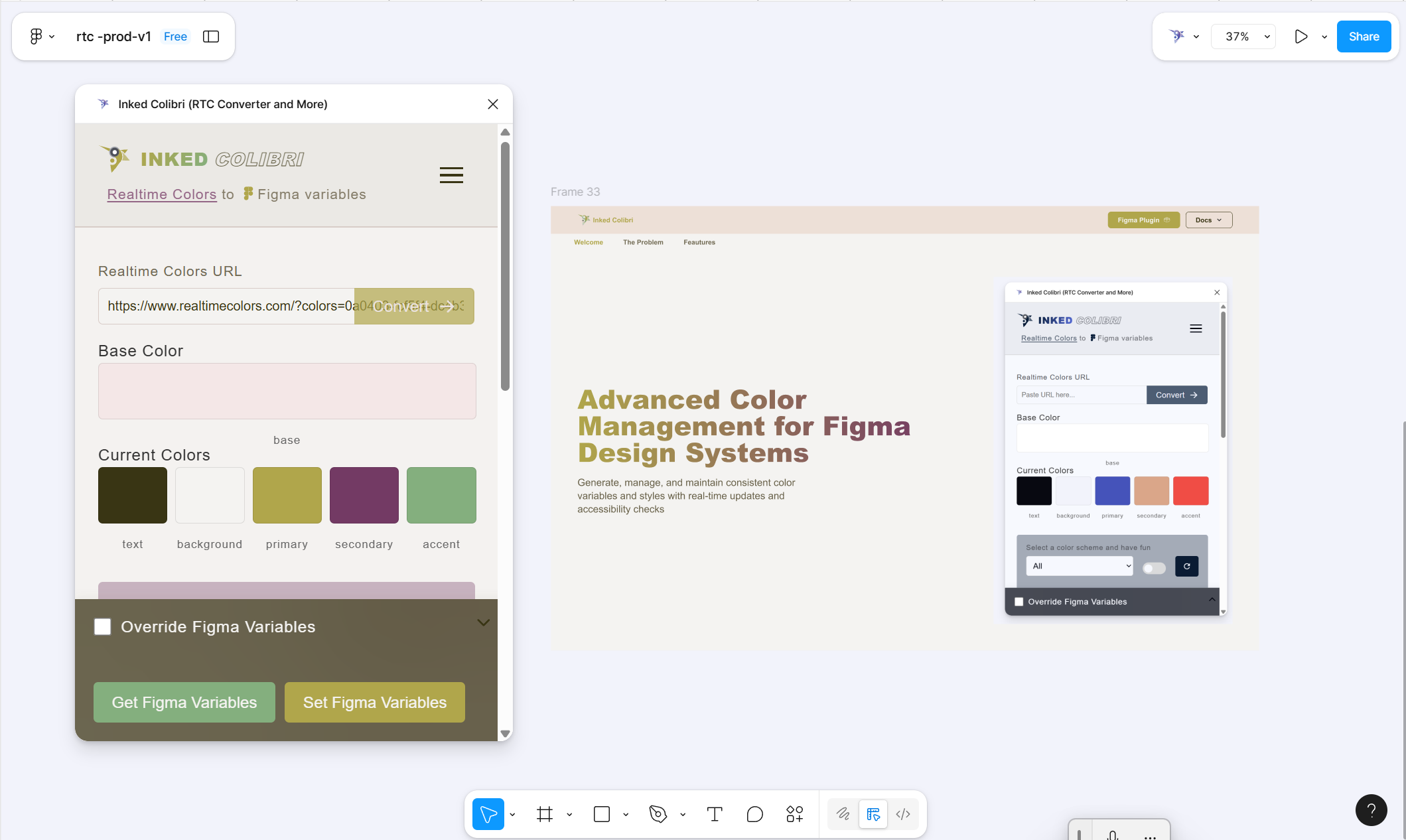
Generate Your Color System
Pick a few colors. Get a full reactive color system in seconds — not a day of manual shade-mixing.
What it does
You pick five roles — Primary, Secondary, Accent, Text, Background — and the plugin builds the full ramp for each one:
- Shades — the base mixed toward black
- Tints — the base mixed toward white
- Alpha — the base at 5%–100% opacity, every 5%
That’s 307 reactive variables, written into a Figma collection called RTC. Change a base color later and everything bound to it updates with it.
If an RTC collection already exists in your file, generating again updates it. If it doesn’t, generating creates it.
How to use it
Option 1 — Import from RealtimeColors.com
- On RealtimeColors.com, press
Ctrl+S/Cmd+Sto copy the palette URL. - Paste it into the plugin’s Realtime Color URL field.
- Generate the scheme.
Option 2 — Build inside Figma
- Open Inked Colibri → Generate Color Scheme.
- Pick Primary, Secondary, and Accent (Text and Background are optional).
- Click Generate Scheme.
After generation
Bind fills, strokes, and text to the RTC variables. From then on, scheme changes flow through the design without recoloring anything by hand.
Design with the roles
| Role | Typical share | Typical use |
|---|---|---|
| Primary | 70% | Surfaces, large areas, neutral structure |
| Secondary | 20% | Supporting emphasis |
| Accent | 10% | Buttons, highlights — what should be noticed first |
Text and Background are peer roles in the same system (typically dark text / light surface) — set custom tones for either when the product needs it.
Tip: even a neutral gray start is worth generating. Once elements are bound, theme and dark-mode switches stay one click instead of a rebuild.